How to add memes to your OBS stream and accept meme donations
A step-by-step guide for streamers: enable meme donations in Oxygen Donuts, add a separate OBS Browser Source, set prices, zones, fullscreen, and upload your own memes.
Memes on stream work better than plain text: a viewer does not just write a message, they bring the joke right onto the screen. In Oxygen Donuts, this is built into donations: the viewer chooses a meme, sends a donation, and the meme appears in OBS through a separate overlay.
If you were looking for something like a meme alert for your stream, but want it tied to donations, this guide walks through the whole setup: from enabling the feature to checking it on your own page.
What you get after setup
After setup, memes become a separate donation format
- Viewers can choose memes on your donation page.
- Memes appear on stream through a separate OBS Browser Source.
- You can control size, sound, delay, and allowed placement zones.
- You can set separate prices for a regular meme, selected screen placement, and fullscreen.
- You can upload custom memes that match your channel style and chat jokes.
- You need to add a separate OBS source for memes once.
- Custom memes are reviewed before they enter the catalogue.
- The Telegram bot helps people search and upload memes, but a paid meme donation for the stream is sent through the donation page.
What you need first
| What you need | Why |
|---|---|
| Streamer account in Oxygen Donuts | To open the dashboard, enable memes, and get a separate OBS link. |
| Ready donation page | Viewers will send meme donations through your public page. |
| OBS Studio | Memes are shown on stream through Browser Source. The official OBS documentation describes Browser Source as a web page inside an OBS scene. |
| A couple of test memes | To quickly check how a meme looks on the scene and whether it covers important elements. |
OBS shows these elements through Browser Source: it is a source that adds a web page directly into your scene. That is why memes in Oxygen Donuts work as a separate layer: you can place it above the game, below the camera, or in a separate scene.
Quick setup plan
The whole path takes a few minutes
- 1Open meme settings
Go to the Oxygen Donuts dashboard and open the memes section.
- 2Enable meme donations
Turn on the feature so the meme tab appears on your donation page.
- 3Copy the separate OBS link
Memes have their own OBS link. It does not replace the normal donation alert.
- 4Add Browser Source in OBS
Create a new browser source, paste the link, and stretch the source across the whole scene.
- 5Set appearance and behavior
Choose size, sound, delay, and zones where memes can appear.
- 6Set prices
Set the regular meme price, placement surcharge, and fullscreen surcharge.
- 7Upload your own memes
Add local channel jokes: GIFs, images, or short videos.
- 8Check it as a viewer
Open your donation page and make sure the meme tab is clear and works.
Step 1. Open meme settings
Go to the Oxygen Donuts dashboard and open the memes section. The fastest way is to open the settings directly: /dashboard/widgets/memes.
This page contains everything related to meme donations: enabling the feature, OBS link, price, placement zones, sound, size, and delay.
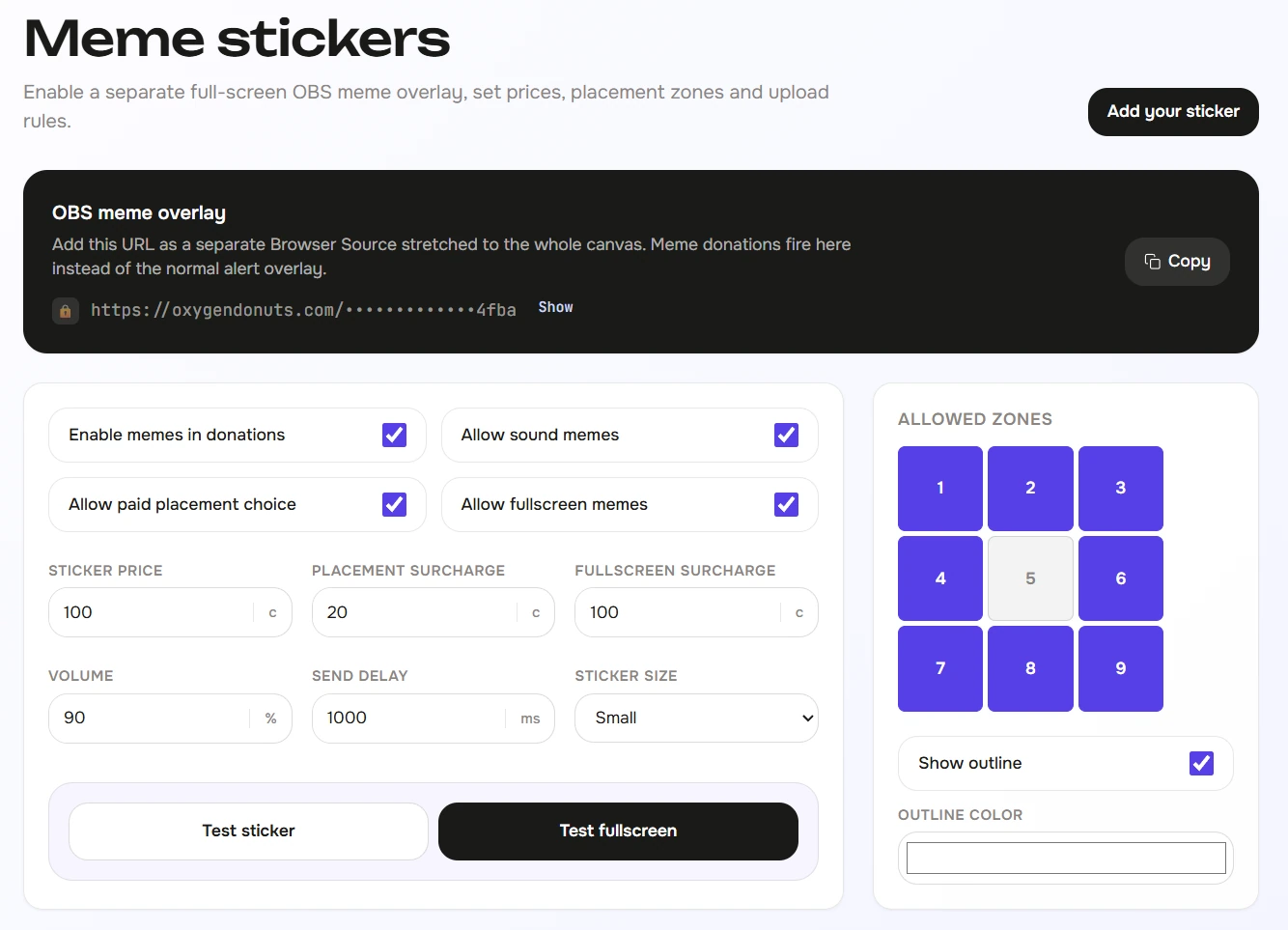
Step 2. Enable meme donations
Turn on memes in settings. After that, viewers will see a separate meme tab on your public donation page.
Important: memes appear only for streamers who enabled this format themselves. If the feature is off, viewers will see the regular donation form without the meme tab.
Step 3. Copy the separate OBS link for memes
In meme settings, copy the OBS link for the meme overlay. This is a separate link only for memes. It is different from the regular donation alert and is needed so memes can live as a separate layer.
This makes scene control easier: regular donations can appear in one place, while memes appear somewhere else, without overlap or screen chaos.
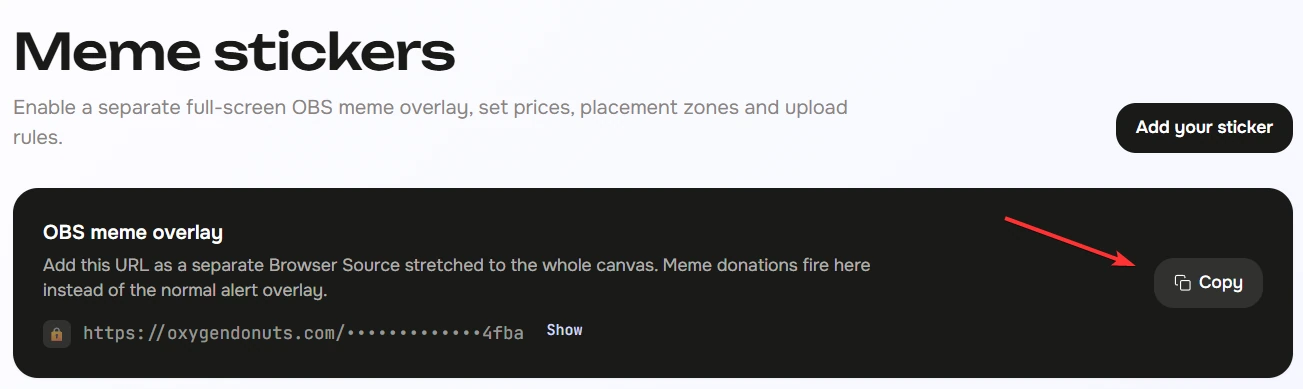
Step 4. Add Browser Source in OBS
How to add the meme overlay in OBS
- 1Open the right scene
Choose the scene where memes should appear: your main stream scene, Just Chatting, gameplay, or a separate test scene.
- 2Add a Browser Source
In OBS, press the plus button in Sources and choose Browser Source.
- 3Paste the OBS link from Oxygen Donuts
Paste the meme overlay link you copied from the dashboard into the URL field.
- 4Stretch the source to full screen
For a normal 1080p stream, you can set width to 1920 and height to 1080, then stretch the source across the whole scene.
- 5Place the layer above the game
The meme overlay should be above game or screen capture, otherwise the meme may be hidden.

Step 5. Set size, sound, delay, and zones
Now configure how memes behave on screen. Start calmly: medium size, sound not too loud, a small delay between memes, and a few safe zones where a meme will not cover your face, chat, or important game UI.
Zones matter a lot. If you allow everything immediately, viewers can send memes anywhere. That can be funny, but not always comfortable during a stream. Start with clear zones first, then expand the rules when you see how chat uses the feature.
| Setting | How to start |
|---|---|
| Size | Start with medium size so the meme is visible but does not cover the whole stream. |
| Sound | Enable it if memes should make sound on stream, but check volume before going live. |
| Delay | Add a pause between memes so several donations do not turn into noise. |
| Zones | Keep zones where the meme does not cover your face, important text, minimap, or game UI. |
| Fullscreen | Enable only if you want it to be a separate expensive and noticeable effect. |
Step 6. Set the regular meme price, placement, and fullscreen
Meme donations can become a small economy inside your stream. A regular meme can be cheaper, selected screen placement can cost a bit more, and fullscreen can be the most noticeable format.
The logic is simple: the more a meme interrupts the stream, the higher the price can be. Viewers choose the strength of the effect, while you keep control over the scene.
| Format | When to use it |
|---|---|
| Regular meme | Base format: the meme appears in an allowed zone and does not break the scene. |
| Placement | Extra charge for choosing a specific screen position. Useful when a viewer wants the meme to be more noticeable. |
| Fullscreen | The most noticeable format. It is better to price it higher because it affects the stream the most. |
Step 7. Upload your own memes
Custom memes are what make the feature feel alive for your channel. You can upload images, GIFs, and short videos: local reactions, game memes, chat inside jokes, or moments from previous streams.
To upload, open the meme upload page, add a file, title, description, and keywords. After upload, the meme goes to review. Once approved, it can be used in the catalogue.
| Type | Example |
|---|---|
| Image | PNG, JPG, or WebP with a reaction, face, phrase, or local joke. |
| GIF | A short animation that is easy to understand without long context. |
| Video | A short MP4 or WebM that can be used as a stream meme. |
| Telegram | You can submit a meme for moderation through MemeDonut directly from Telegram. |
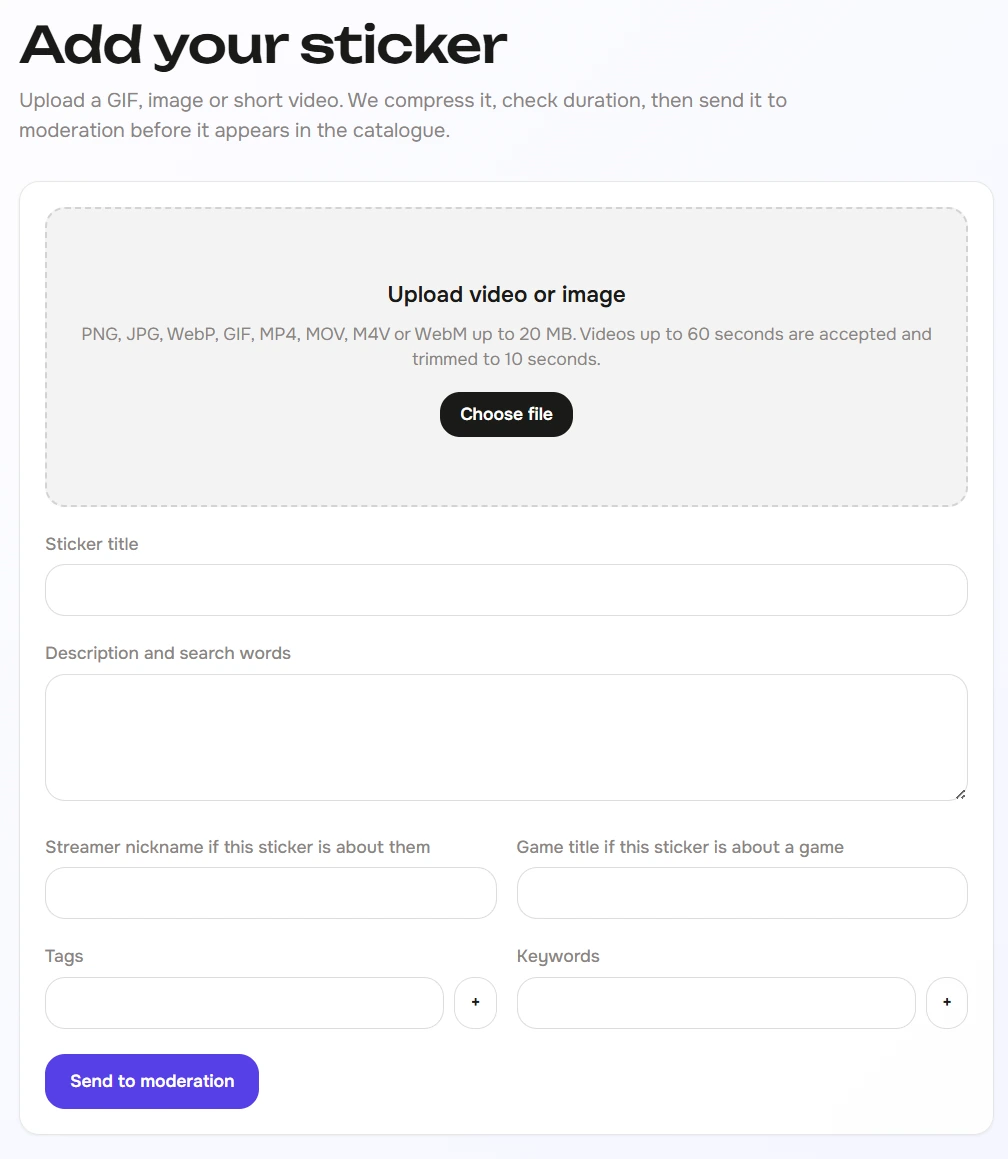
Step 8. Check how a viewer sees it
After setup, open your donation page as a viewer. Check that the meme tab is visible, the catalogue opens, the meme can be selected, the price is clear, and fullscreen or placement does not feel unexpected.
Then check OBS: the meme overlay should be a separate layer, above the right sources, with no unwanted background. If the meme does not appear, first make sure OBS uses the meme link, not the regular donation alert link.
What to tell viewers
When everything is ready, do not explain the feature with a long lecture. Give chat a simple line:
"I turned on meme donations. There is a meme tab on the donation page: choose a meme, send a donation, and it appears right on stream. Fullscreen costs more because that is already a mini takeover of the stream."
This helps viewers understand where to click, what will happen, and why some options cost more.
How to use the MemeDonut Telegram bot
MemeDonut in Telegram helps the community live around memes: people can search memes from the catalogue, send them in Telegram chats, and submit their own memes for moderation.
It is important to separate the flows: the Telegram bot helps with search and uploads, while a paid meme donation for the stream is sent through your Oxygen Donuts donation page.
Common setup mistakes
| Problem | What to check |
|---|---|
| There is no meme tab on the donation page | Check whether meme donations are enabled in streamer settings. |
| The meme does not appear in OBS | Check that you added a separate Browser Source with the meme overlay link. |
| The meme covers your face or game | Reduce allowed zones or lower meme size. |
| The sound is too loud | Lower meme volume in settings and test audio before going live. |
| Viewers do not understand why fullscreen costs more | Explain that fullscreen affects the stream more, so it is a separate effect. |
- Do meme donations replace regular donations?
- No. This is a separate format. Regular donations and meme donations can live side by side, but memes are shown through a separate OBS overlay.
- Why do I need a separate OBS Browser Source?
- This keeps memes from mixing with normal donation alerts. You can separately control the layer, size, and position of memes.
- Can viewers choose where the meme appears on screen?
- Yes. You can enable placement selection and leave only the zones that are safe for your scene.
- Can fullscreen memes cost more?
- Yes. Fullscreen affects the stream the most, so it makes sense to make it a separate premium effect.
- Can I upload my own memes?
- Yes. You can upload images, GIFs, and short videos. Before entering the catalogue, the meme goes through review.
- Can a viewer send a meme directly through Telegram?
- The Telegram bot helps search memes and submit custom memes for moderation. A paid meme donation for the stream is sent through the streamer donation page.
- What should I do if memes do not appear in OBS?
- Check that you added the meme overlay link, that the source is above the game or screen capture, and that meme donations are enabled in the dashboard.