How to Create a Twitch Profile Banner and Brand Your Channel
Step-by-step guide to creating a Twitch profile banner with Oxygen Donuts, downloading the PNG, checking Twitch requirements, and adding it in your channel settings.
A profile banner is part of your Twitch channel branding
A Twitch profile banner is a wide image at the top of your profile and channel page. It is also called a Twitch header or channel banner. Do not confuse it with an offline screen, stream overlay, or info panels: this guide is specifically about the profile banner. Below, you will go from selecting a preset in Oxygen Donuts to uploading a PNG to Twitch.
Where to open the Twitch banner builder
Sign in to your Oxygen Donuts dashboard and go to "Widgets → Donations." Find the "Banner for your Twitch profile" card and select "Constructor." The ready-made light and dark versions remain available alongside it, while the constructor lets you create your own preset-based design.
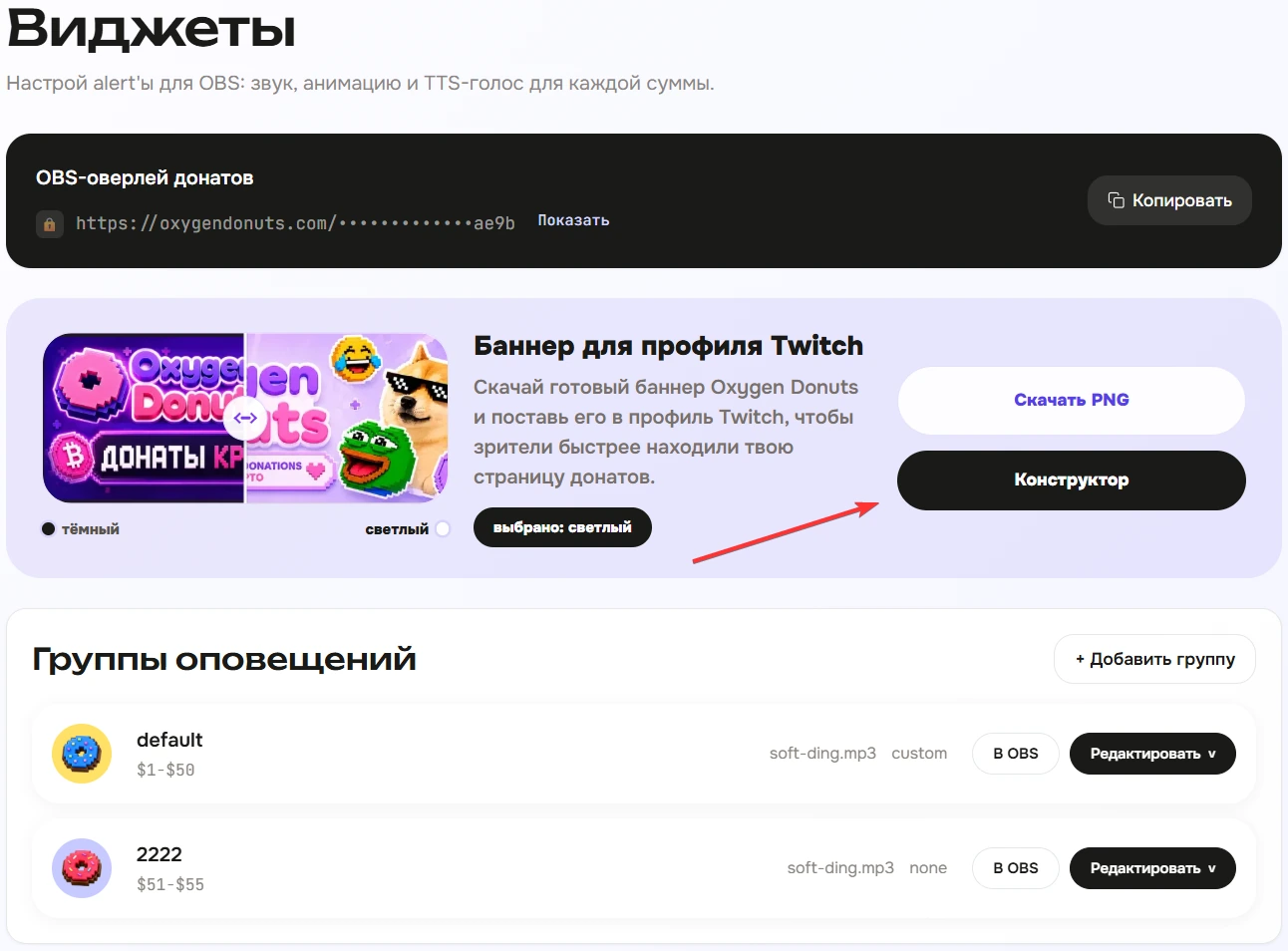
How to create a Twitch profile banner
Build a PNG in the Oxygen Donuts builder
- 1Open the builder
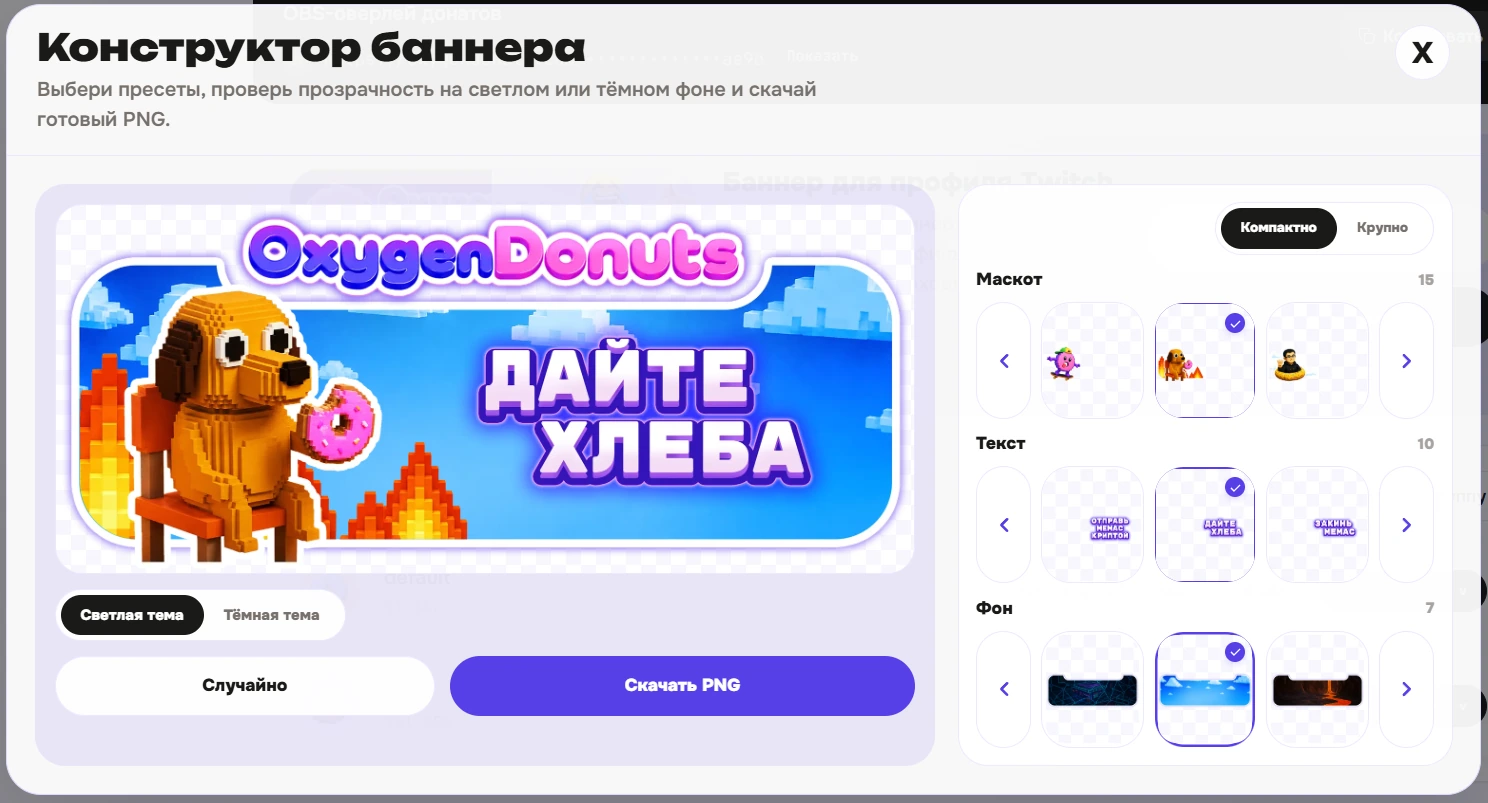
On the "Banner for your Twitch profile" card, select "Constructor." A preview of your new Twitch header opens.
- 2Choose a background, mascot, and text
The English version includes 7 backgrounds, 15 mascots, and 10 text presets—1,050 combinations in total. This is a curated preset builder, not a blank editor: the Oxygen Donuts logo is already built into the layout.
- 3Review the preview
Switch between light and dark backgrounds, browse options using the arrows, or choose a random combination. Keep the version in which the text and character are easy to read at a glance.
- 4Download the PNG
Select "Download PNG." The file is saved to your device; the builder does not upload the banner to Twitch automatically.
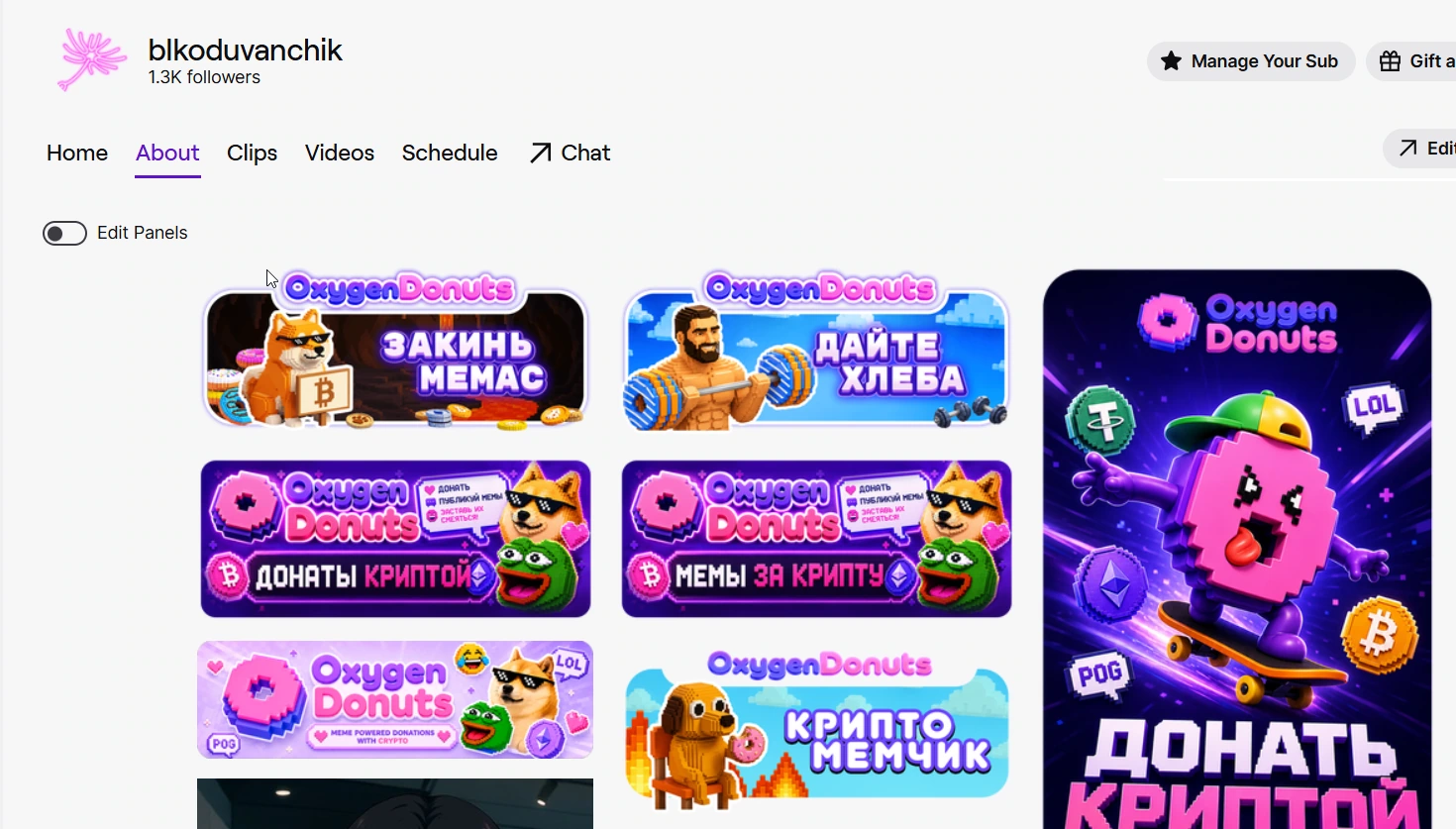
How to add a banner to your Twitch profile
Upload the downloaded PNG to Twitch
- 1Open the Creator Dashboard
Sign in to Twitch and open your channel's Creator Dashboard.
- 2Go to "Settings → Channel → Brand"
Under "Settings," open "Channel," then the "Brand" tab and find the "Profile Banner" section. Twitch interface labels may change, so check the official help page before uploading.
- 3Select "Update" and choose the PNG
Select "Update" in the "Profile Banner" section, choose the downloaded file, and wait for the upload to finish. Then open your channel page and see how the banner looks.
- 4Check your channel page
Open your Twitch channel on a computer and phone. Make sure the text and mascot are not cropped and that the banner stays readable at different screen widths.
Twitch profile banner size: what to check
| Parameter | What to check before uploading |
|---|---|
| Recommended size | 1200 × 480 pixels. |
| Supported formats | PNG, JPG, or GIF. |
| Maximum file size | No more than 10 MB. |
| Important composition area | Keep text and key elements in a safe area away from the edges: Twitch scales the banner to browser width. |
Official Twitch help recommends 1200 × 480 pixels and advises keeping the meaningful part of the image on the left because the banner adapts to the window width. The account settings help also lists this resolution as the upper limit. Use these requirements as a guide for your design, and check how the channel page appears after uploading.
What the Twitch banner builder can do
The Oxygen Donuts builder helps you create one part of your Twitch profile design: a banner made from ready-to-use backgrounds, mascots, and text presets, with a quick preview and PNG download. It does not create an avatar, info panels, overlays, or an offline screen, and it does not upload the file to Twitch for you. If you only need a profile banner, you do not need Photoshop; if you want full Twitch channel branding, those elements are configured separately.
Questions about Twitch profile design
- What size should a Twitch profile banner be?
- Twitch recommends 1200 × 480 pixels. PNG, JPG, and GIF are supported, and the file must not exceed 10 MB. After uploading, be sure to check how the banner looks on your channel page.
- How do I add a banner to my Twitch profile?
- Open "Creator Dashboard → Settings → Channel → Brand," find "Profile Banner," select "Update," and choose the downloaded PNG. Wait for the upload to finish, then check the result on your channel page.
- Do I need Photoshop to make a Twitch banner?
- No. In Oxygen Donuts, choose a ready-to-use background, mascot, and text preset, review the preview, and download the PNG.
- Is this a builder for full Twitch channel branding?
- No. It currently creates only a Twitch profile banner. An avatar, panels, overlays, and an offline screen are not included.
- How is a profile banner different from a Twitch offline screen?
- A profile banner is a wide image at the top of your profile and channel page. An offline screen appears in the video player when you are not streaming; it is a different branding element and uses a different format.