How to Connect Donations in OBS for Twitch
A step-by-step guide for streamers: create an Oxygen Donuts page, connect an OBS Browser Source, and start accepting crypto donations.
What you get after setup
After setup, you will have a personal donation page and a separate OBS link. A viewer sends a donation, and an alert with their name, amount, and message appears on stream.
What you need before you start
Before setup
- 1Twitch account
You need the account where you want to connect donations.
- 2Wallet
Donations arrive directly in your crypto wallet.
- 3OBS Studio
You need to add a Browser Source with the alert link in OBS.
Step 1. Create your Oxygen Donuts page
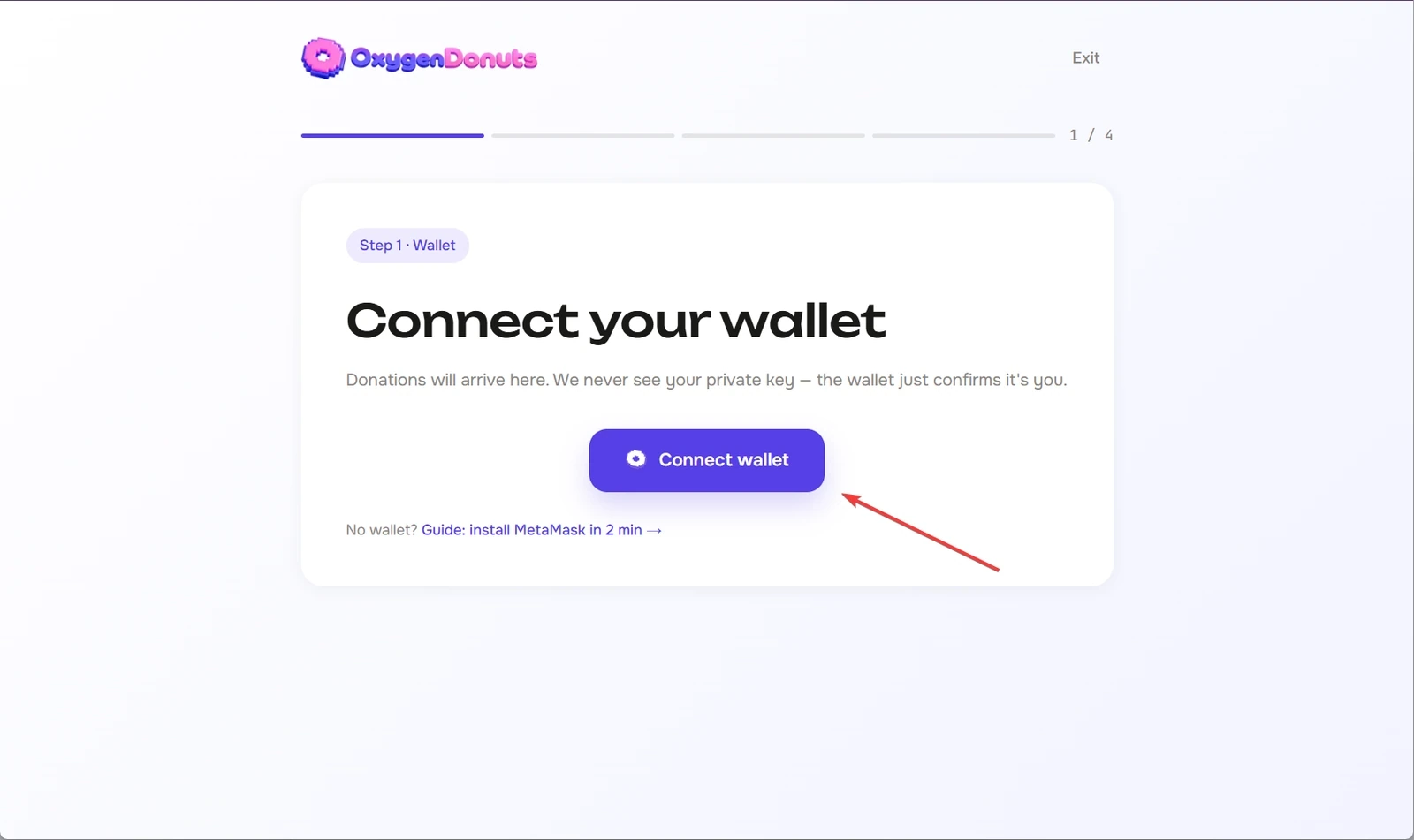
Click "Become a streamer", connect Twitch and your wallet. After registration, Oxygen Donuts will create your donation page and prepare the OBS link.
Step 2. Copy the OBS link
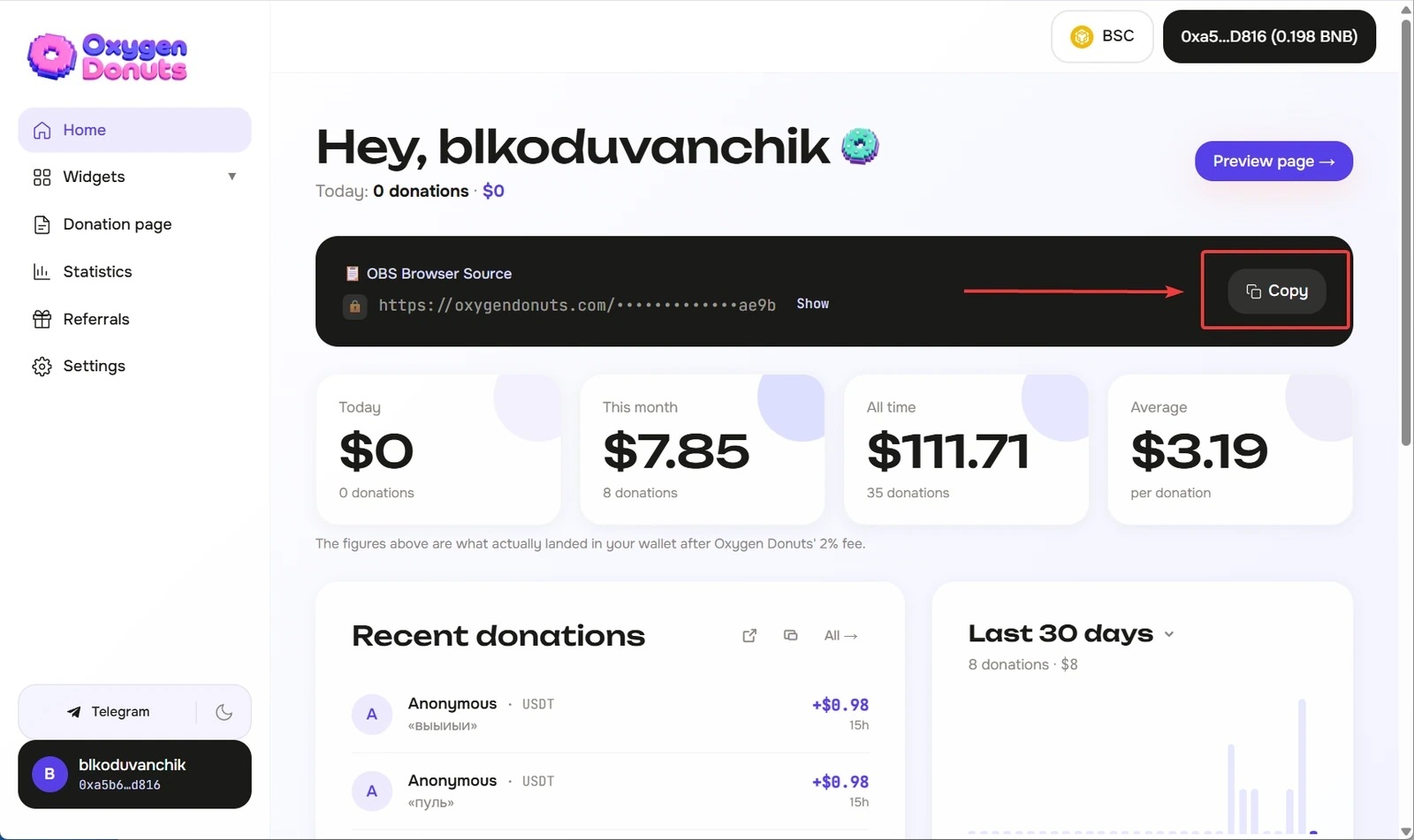
After registration, open the dashboard and find the donation widget link. This is the link you need to paste into OBS as a Browser Source.
Step 3. Add the Browser Source in OBS
OBS setup
- 1Open Sources
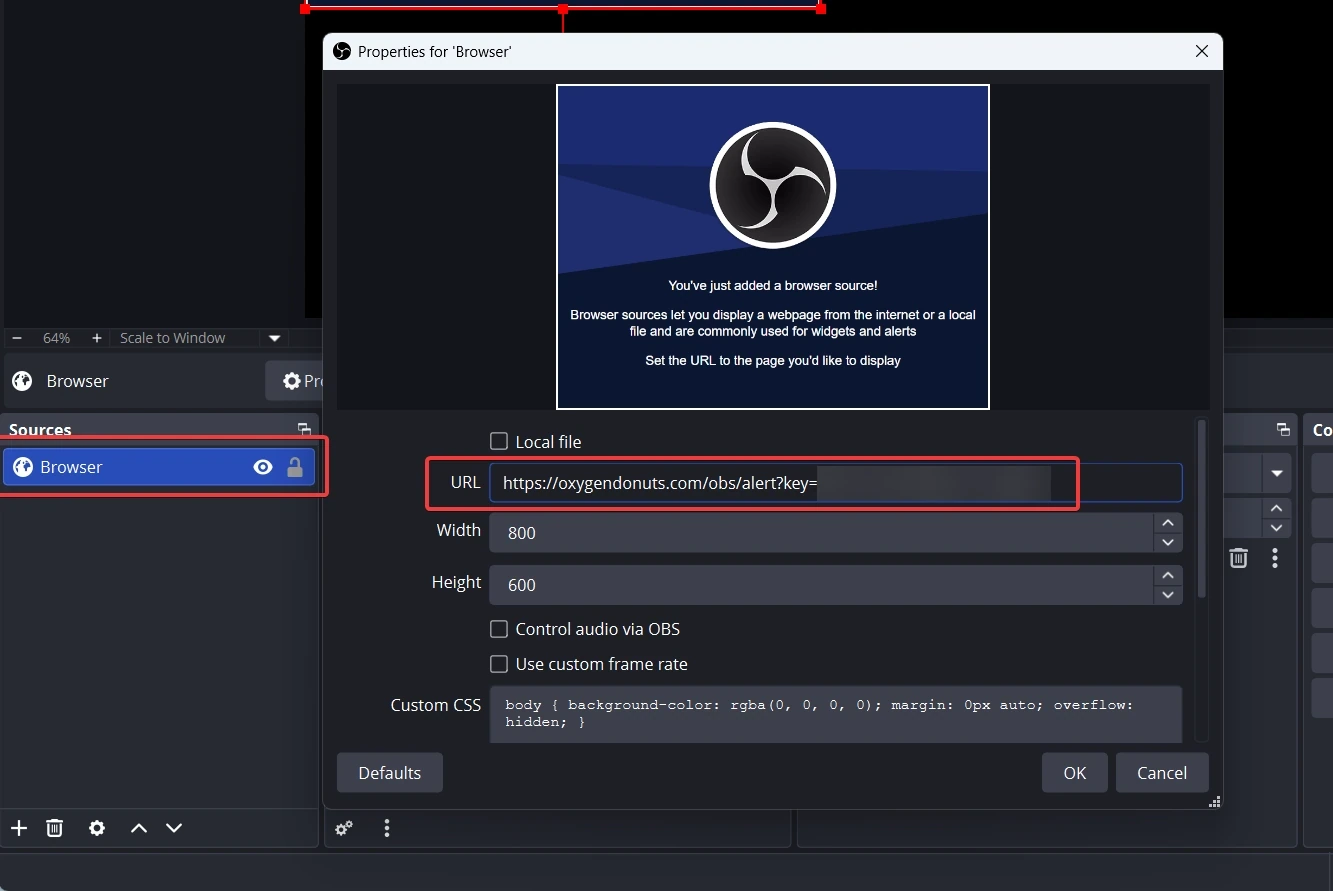
In OBS, click the plus button in the Sources panel.
- 2Choose Browser
Create a new Browser Source.
- 3Paste the link
Paste the Oxygen Donuts widget link into the URL field.
- 4Check the size
For a Full HD scene, 1920 width and 1080 height usually work well.
Step 4. Send a test donation
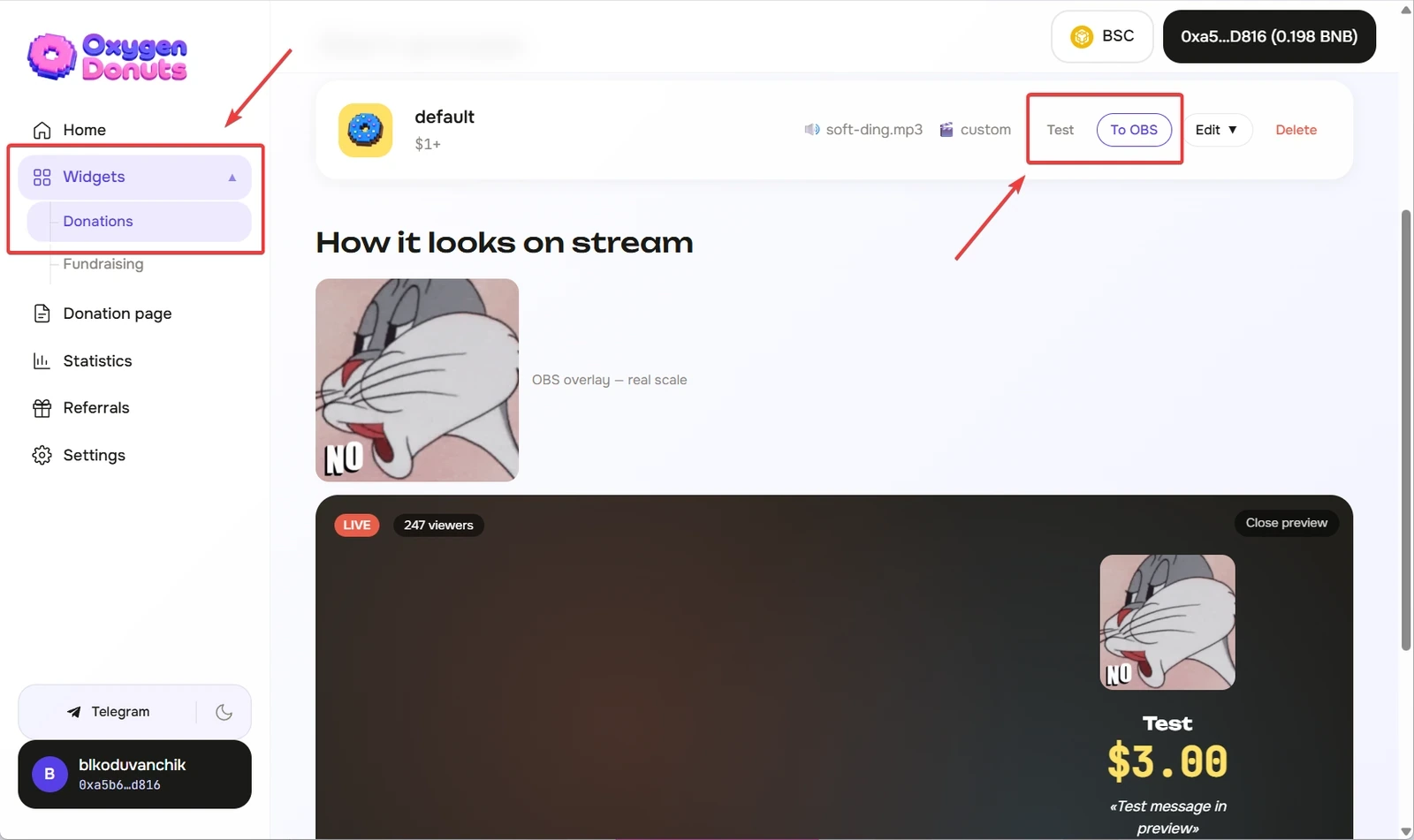
Before your first live stream, send a test donation or use the alert test in the dashboard. This helps you confirm that the widget is visible on the scene, the sound works, and the message does not cover important stream elements.
- Can I use Oxygen Donuts without OBS?
- Yes, the donation page works separately. But for on-stream alerts, it is more convenient to add the OBS Browser Source.
- Do donations arrive on a bank card?
- No. Funds go directly to the streamer's crypto wallet.
- Can I change the alert appearance?
- Yes, the notification style can be configured in the dashboard.
- What should I do if the alert does not appear?
- Check the Browser Source link, the layer visibility in OBS, and the widget settings in the dashboard.