How to connect the Oxygen Donuts Telegram bot for donation notifications
Step by step: where to find Telegram in Oxygen Donuts settings, how to open the bot, send the code, check the status, and enable notifications.
What you get after connecting it
After you connect it, the Oxygen Donuts Telegram bot can send you messages about new donations and Twitch events. This is useful when you do not want to keep the dashboard open all the time, but still want to quickly see important stream activity.
The main connection flow starts in your Oxygen Donuts dashboard: open account settings, click "Connect" next to Telegram, get a one-time code, and send it to the bot in a private chat.
What you need before connecting
- 1Log in to Oxygen Donuts
Open your streamer account and go to the dashboard.
- 2Open Telegram on your phone or computer
It is best to use the Telegram account where you actually want to receive notifications.
- 3Check your Twitch connection if you need Twitch events
If the site needs refreshed Twitch permissions for notifications, it will show the reconnect flow automatically.
Step 1. Open account settings
In the Oxygen Donuts dashboard, open "Settings" and stay on the "Account" tab. In the "Connected accounts" block, find the Telegram row. If the bot is not connected yet, you will see a "Connect" button next to it.
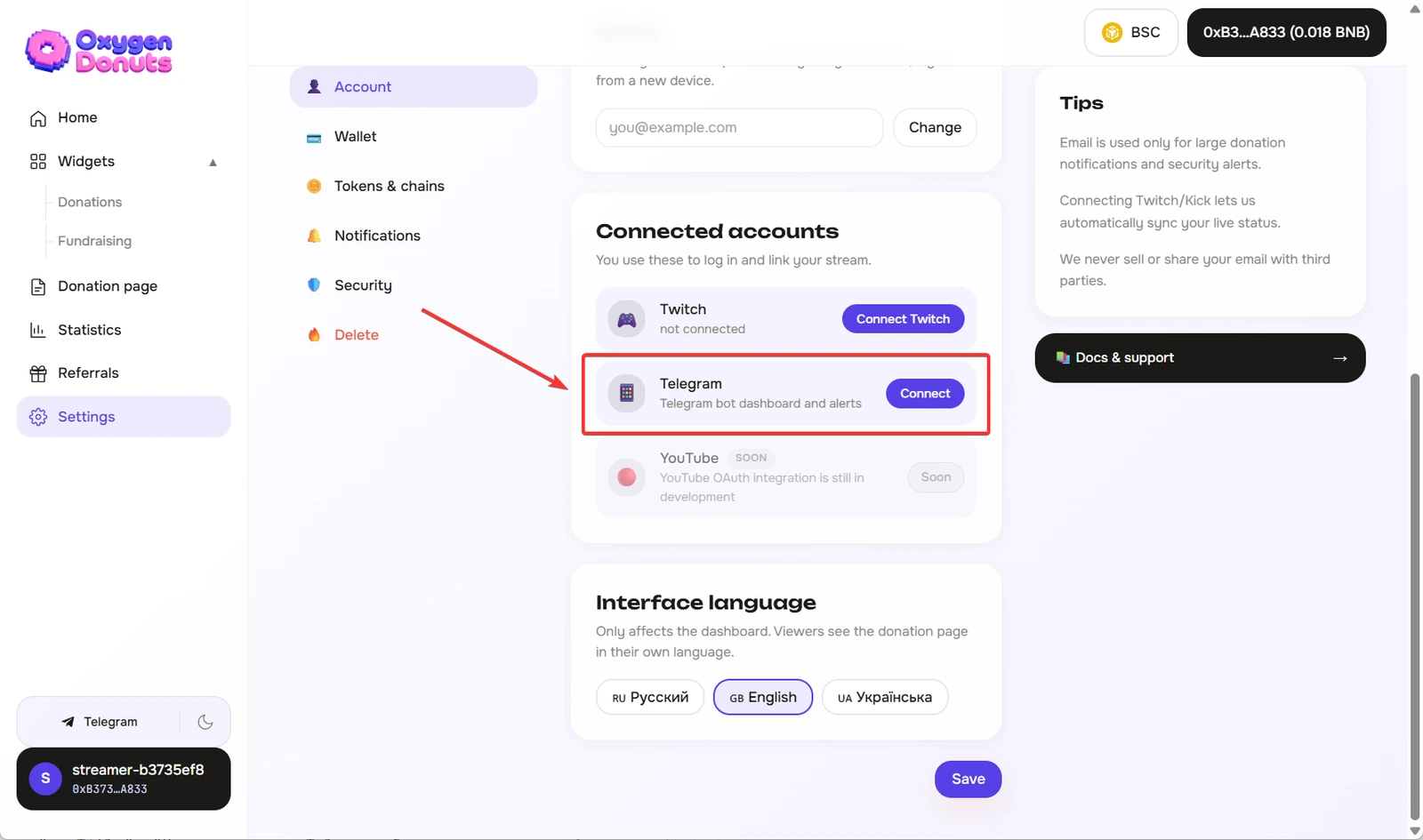
Step 2. Click "Connect" and get the code
After you click "Connect", the site will show a one-time code, a "Copy code" button, an "Open bot" button, and a "Check status" button. The code lets the bot know which Telegram account should be linked to your streamer profile.
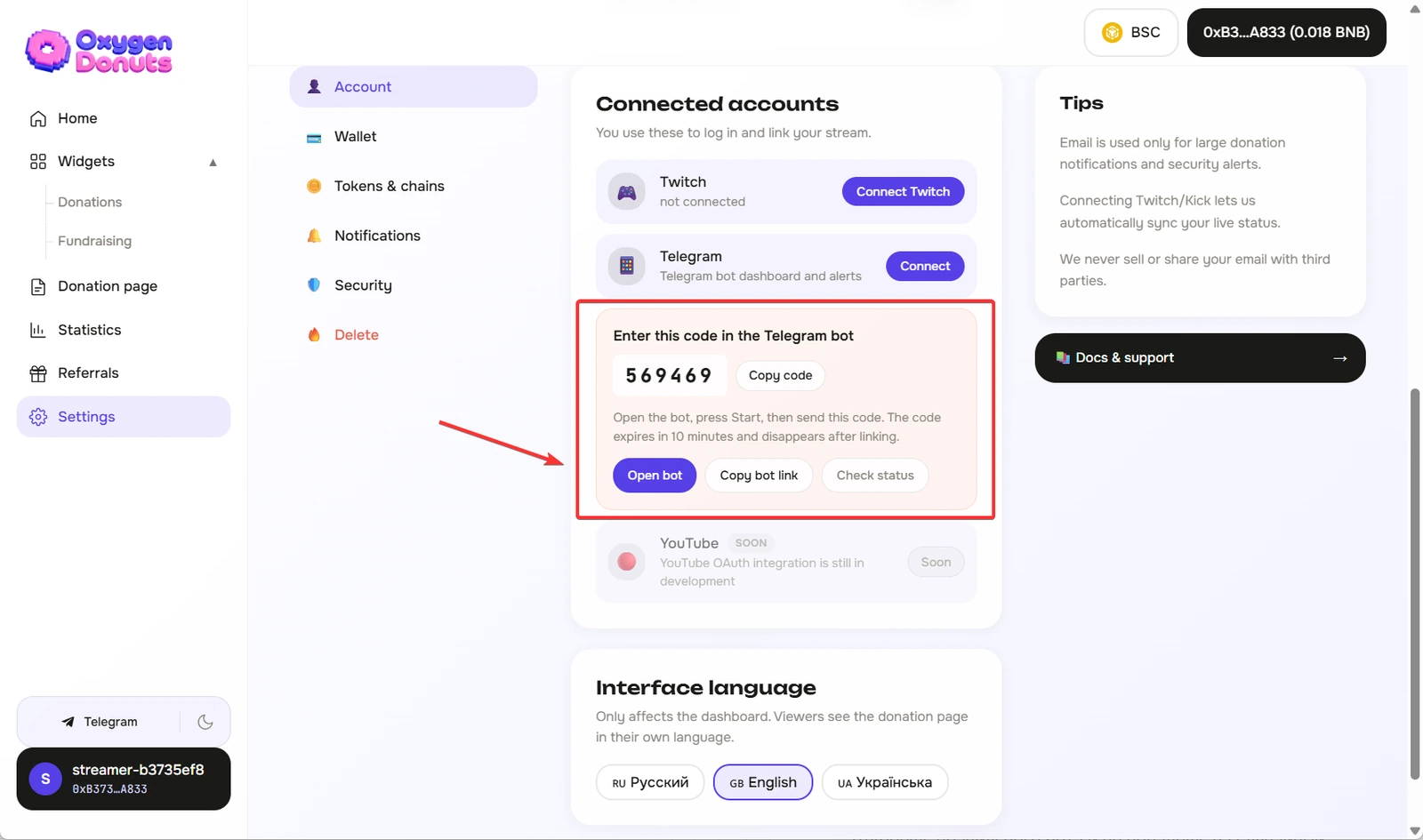
Step 3. Open the bot and send the code
What to do in Telegram
- 1Click "Open bot"
Use the button from the Oxygen Donuts dashboard. This opens the correct bot and helps you avoid random accounts from Telegram search.
- 2Click Start
If Telegram shows the start screen, click Start or send /start.
- 3Send the code
Paste the six-digit code from the dashboard and send it to the bot as a regular message.
- 4Wait for confirmation
After a successful connection, the bot will say that Telegram is linked to your profile.
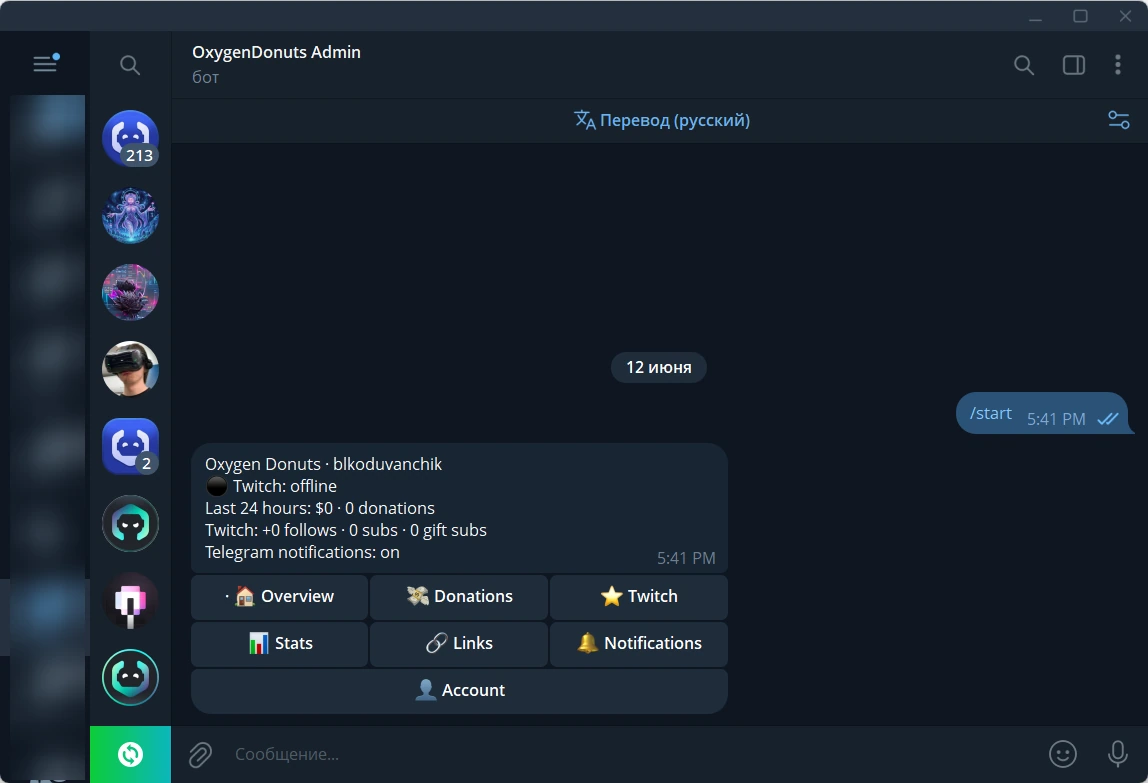
Step 4. Check the status on the site
Go back to Oxygen Donuts. The status usually updates automatically, but you can click "Check status". When Telegram is connected, the Telegram row will show your username or connection status, and below it you will see an "Open Telegram bot" button.
Step 5. Choose which notifications to receive
After connecting the bot, go to "Settings" -> "Notifications". Here you can enable and disable Telegram message delivery separately from the site. Even if delivery is disabled, events stay available in the bot dashboard.
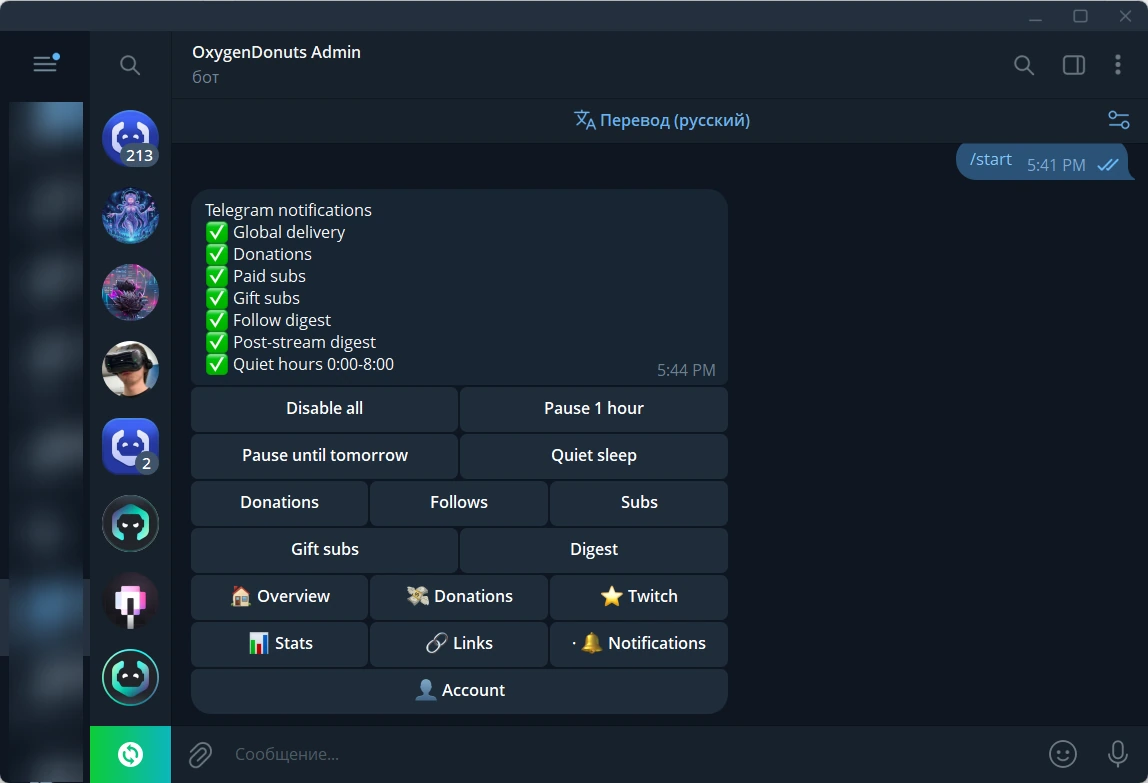
| Setting | What it does |
|---|---|
| Telegram messages | The main switch for all bot messages. |
| Donations | Each donation arrives as a separate message with the amount and text. |
| Twitch follows | New follows can arrive as a digest message so the bot does not spam you during a stream. |
| Paid Twitch subs | Paid subscriptions are sent as separate events. |
| Gift subs | Gift subscriptions are sent as separate events with the quantity. |
| Post-stream digest | After the stream ends, the bot can send the total donation amount, top donation, and Twitch summary. |
| Pause and quiet mode | You can temporarily disable delivery or stop receiving messages at night. |
How to check that everything works
- 1Open the Telegram bot from settings
After connection, the account shows an "Open Telegram bot" button.
- 2Check the bot menu
The bot should have sections for donations, Twitch events, stats, links, and notifications.
- 3Keep donation notifications enabled
If you want to test the real flow, make a small test donation and confirm that the message arrives in Telegram.
If the bot did not connect
- 1Check that the code has not expired
The code is valid for 10 minutes. If more time has passed, click "Connect" again and create a new code.
- 2Message the bot in a private chat
The connection does not work through groups. Open a private chat with the bot and send the code there.
- 3Do not use an old code
After you create a new code, the old one is no longer needed. Send only the latest code from the site.
- 4If the site asks you to refresh Twitch
Reconnect Twitch. This is needed so the bot can send Twitch event notifications.
FAQ
- Where do I get the link to the Oxygen Donuts Telegram bot?
- The safest way is to open Oxygen Donuts account settings and click "Connect" next to Telegram. The site will show an "Open bot" button together with a one-time code.
- Can I connect the bot in a group?
- No. The connection is done in a private chat with the bot because the bot needs to link a specific Telegram account to your streamer profile.
- Can I turn off notifications but keep the bot connected?
- Yes. In the "Notifications" tab you can disable Telegram message delivery, pause notifications, or enable quiet mode. You do not need to remove the bot connection.
- What should I do if the code does not work?
- Create a new code in Oxygen Donuts settings and send it to the bot in a private chat. Old codes can expire or become invalid after a new one is created.